Hello VFRnav fans,
What’s this about?
On this occasion a post on the topic “…I have to replace my phone / tablet with a new / different one → VFRnav should be moved to the new device. As many settings and data as possible should be retained.”
Prerequisite:
Both devices are now connected to the Internet. (e.g. via Wi‑Fi)
Installation:
There are 2 installation options. Either manually via the Play Store as usual, or have the Play Store automatically install it on the new device:
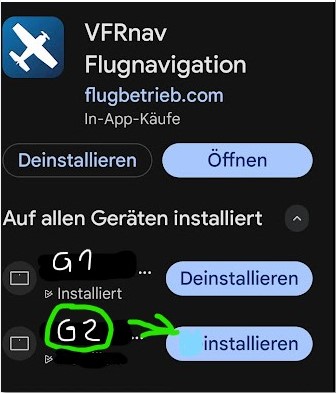
VFRnav is therefore now installed on the new device by default.
Work on the old device:
-
Backup/Export logbook
-
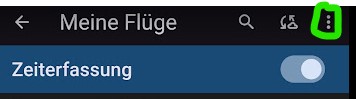 …we go to My Flights → and to the 3 dots
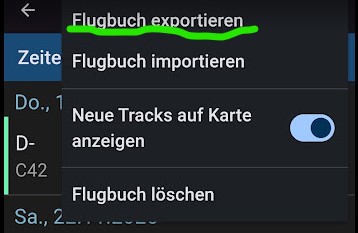 …we choose Export logbook. I recommend selecting the two formats .kml (contains the tracks) and Excel. Save these two files locally on the device first. If you have a Gender-Changer-usb you can now connect a USB memory stick to the device and copy the two saved logbook files to it. Most of you will not have that
  ….no problem! …then send these two files to yourselves
 via email. → With option V1 you wouldn’t actually need this, but backup is backup!
We remain with the logbook under My Flights and now choose the
- Logbook synchronization:
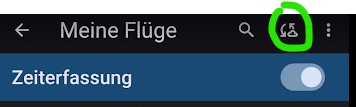 …click the symbol once, done!
The logbook is now available in the VFRnav Cloud under your personal ID ready to be synced with other devices.
- Aircraft synchronization:
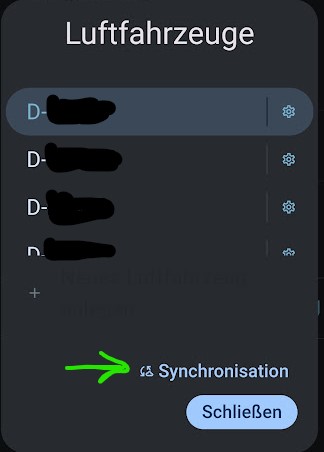 …here too we click the synchronization once
As with the logbook, the configuration(s) of the aircraft (LFZ) associated with the personal ID are now in the VFRnav Cloud.
-
Backup of own georeferenced approach plates (if applicable)
-
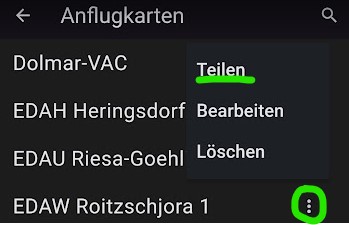 …we select the approach plate → go to the 3 dots and share it, e.g. to a cloud drive, to a USB stick via Gender-Changer-usb, or by email. Unfortunately this path is still a bit more involved. However, this is only necessary for self‑referenced charts!
 -
Synchronization of planned flight routes:
-
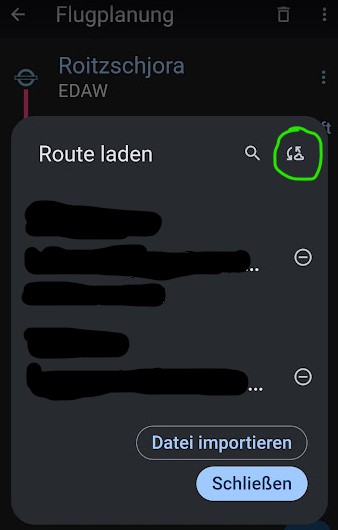 …we go to Flight Planning → Load Route → and click the symbol for synchronization once.
 -
Export/backup of own WPs:
-
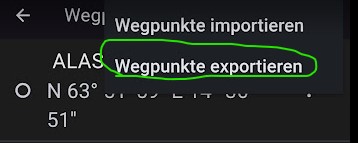 …we go to Flight Planning → My Waypoints and choose Export waypoints. As described above, choose a suitable shared storage location.
 -
Note down VFRnav ID:
-
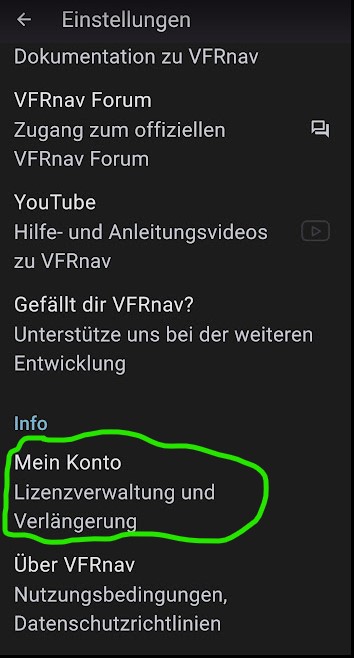 …Settings → under Info → My Account →
 -
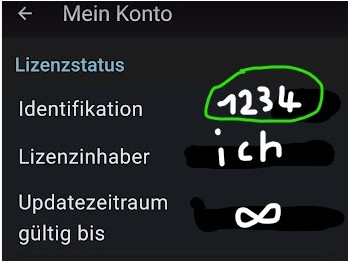 …Identification: note down the number.
Note any further settings not mentioned here. (Radio adapter, Stratux…etc.)
Work on the new device:
- Start VFRnav → enter the identification number (it may only be possible after the trial period has ended)
- Logbook synchronization: → see above
- Aircraft synchronization: → see above
- Synchronization of planned flight routes: → see above
- Import own WPs → from the backed‑up medium
- Import your own approach plates → from the backed‑up medium → Settings → Approach Plates → + → Georeferencing → I want to import a local file instead → navigate to the file.
- Import approach plate from AIP. → via the menu‑guided path from the AIP reinstall the desired approach plates.
- Adjust other settings such as for the radio adapter, Stratux, etc.
Note: a traditional backup (as described above for the logbook) is network‑independent and therefore always works 
I hope this step‑by‑step guide has helped with migrating VFRnav to new hardware. …did I forget anything ? → please feel free to add.
Happy flying,
Karsten
 Many thanks for that!!