Since I dealt with the topic last weekend, I would like to describe the steps here in a hopefully simple and understandable way.
1. Case
Initial situation:
a fellow pilot has provided me and others with an approach chart for an airfield (which cannot be integrated into VFRnav in the usual way). For installation, I was sent a QR code and/or a 4-digit code.
 …what do I do now?
Start VFRnav
Settings → Approach Charts:
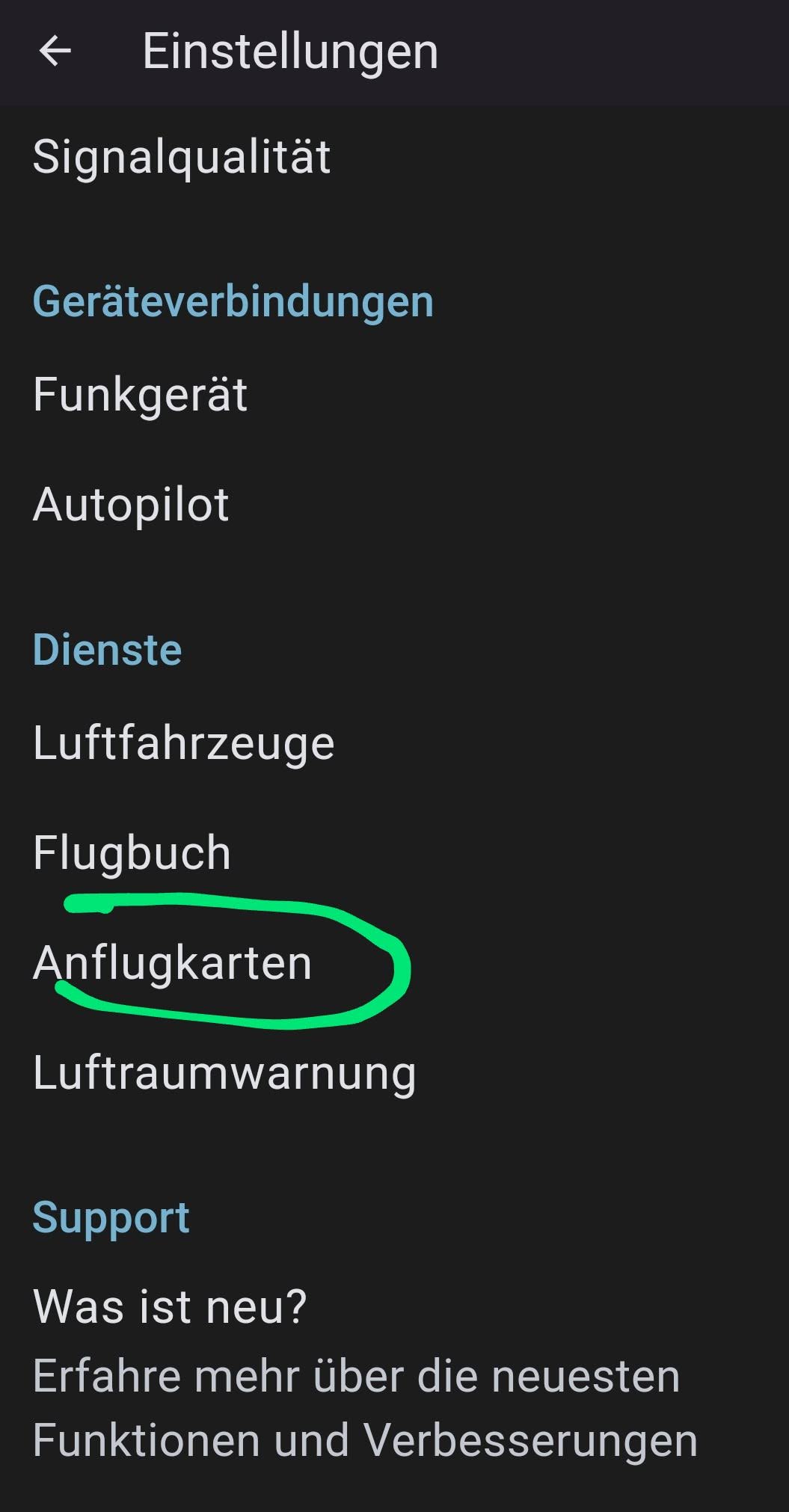
→ tap the blue +:
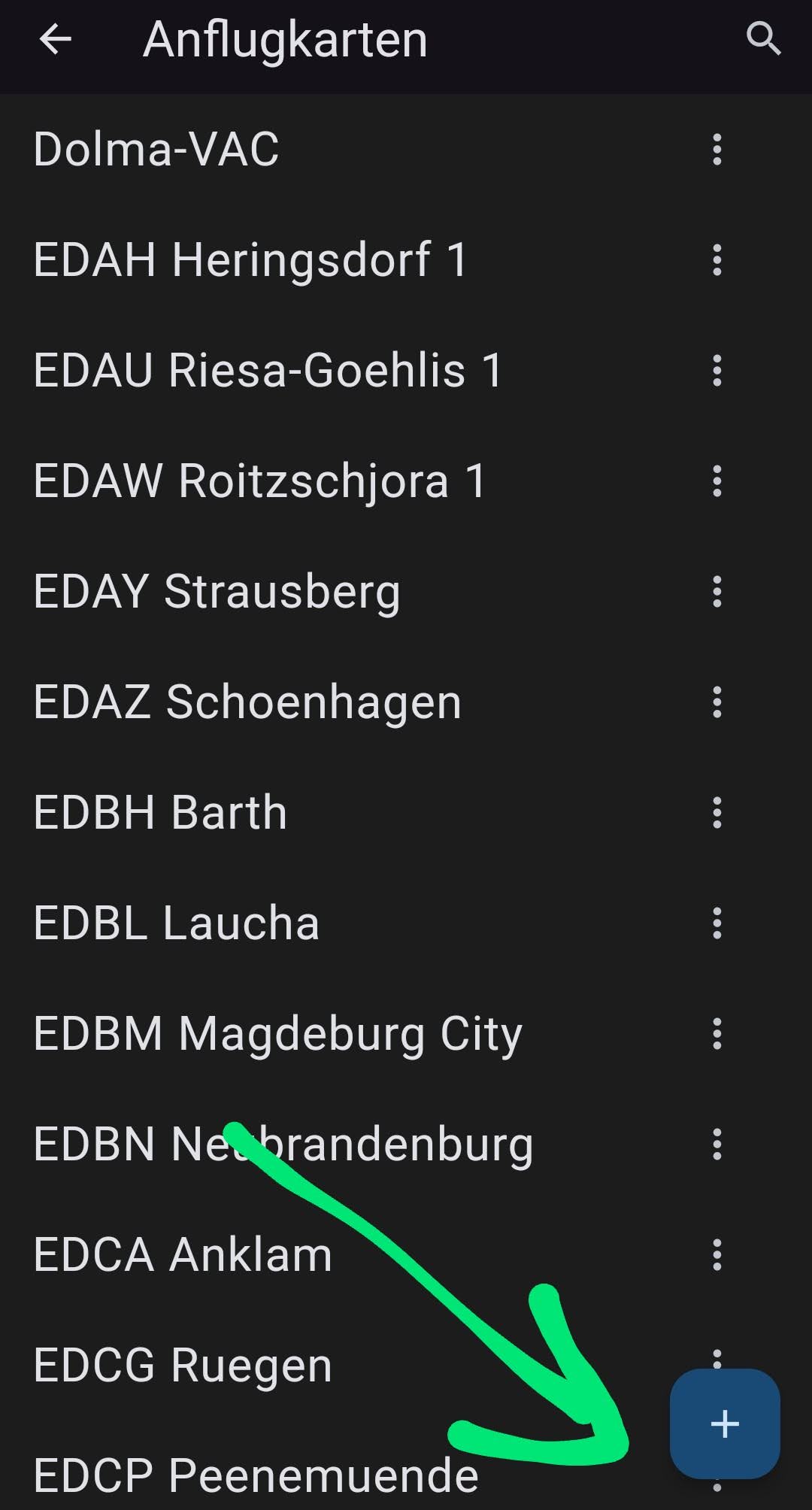
→ in the selection window, choose the bottom item -Georeferencing-:
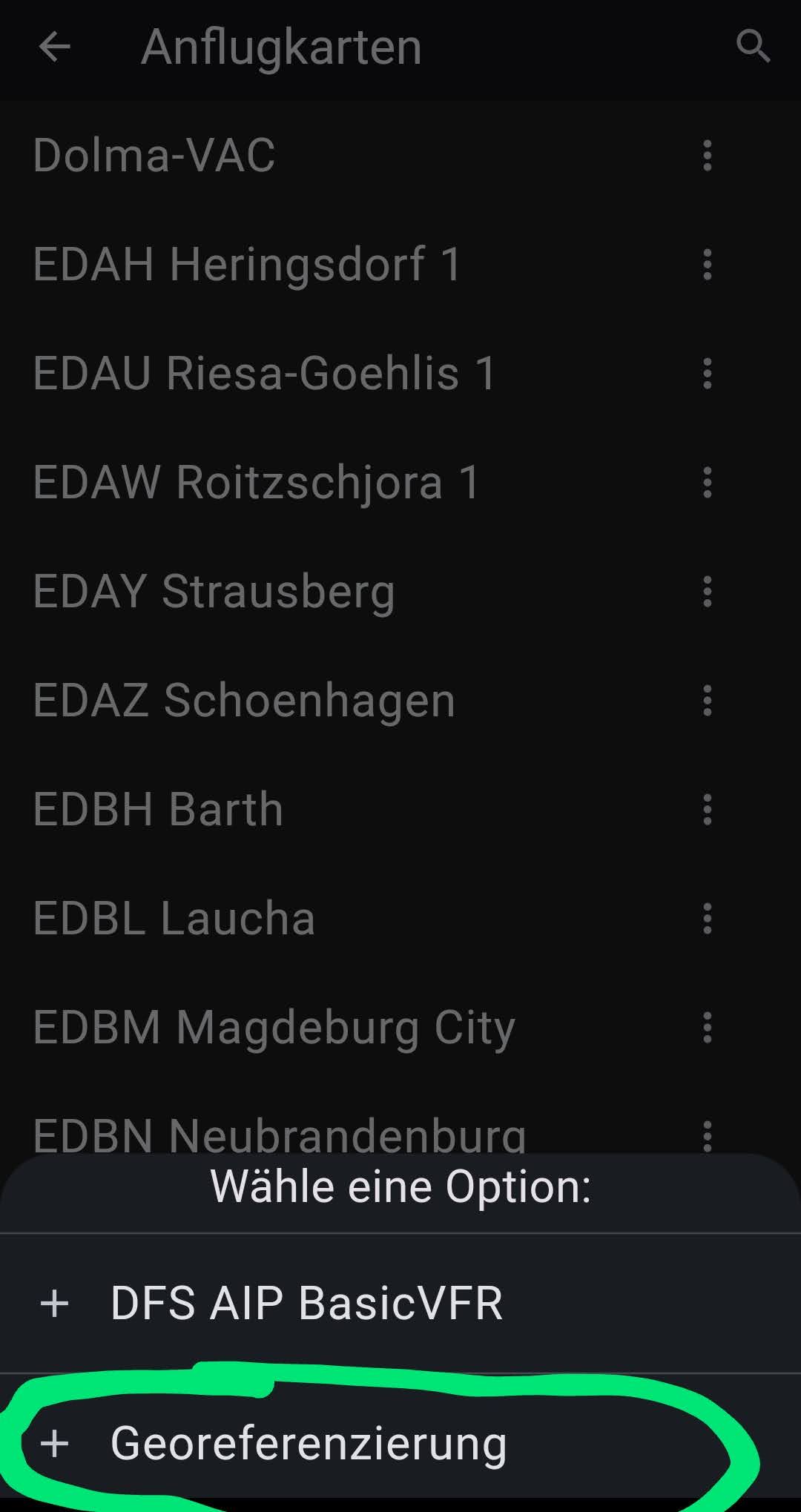
→ here enter the code in the Code field, or scan the QR code:
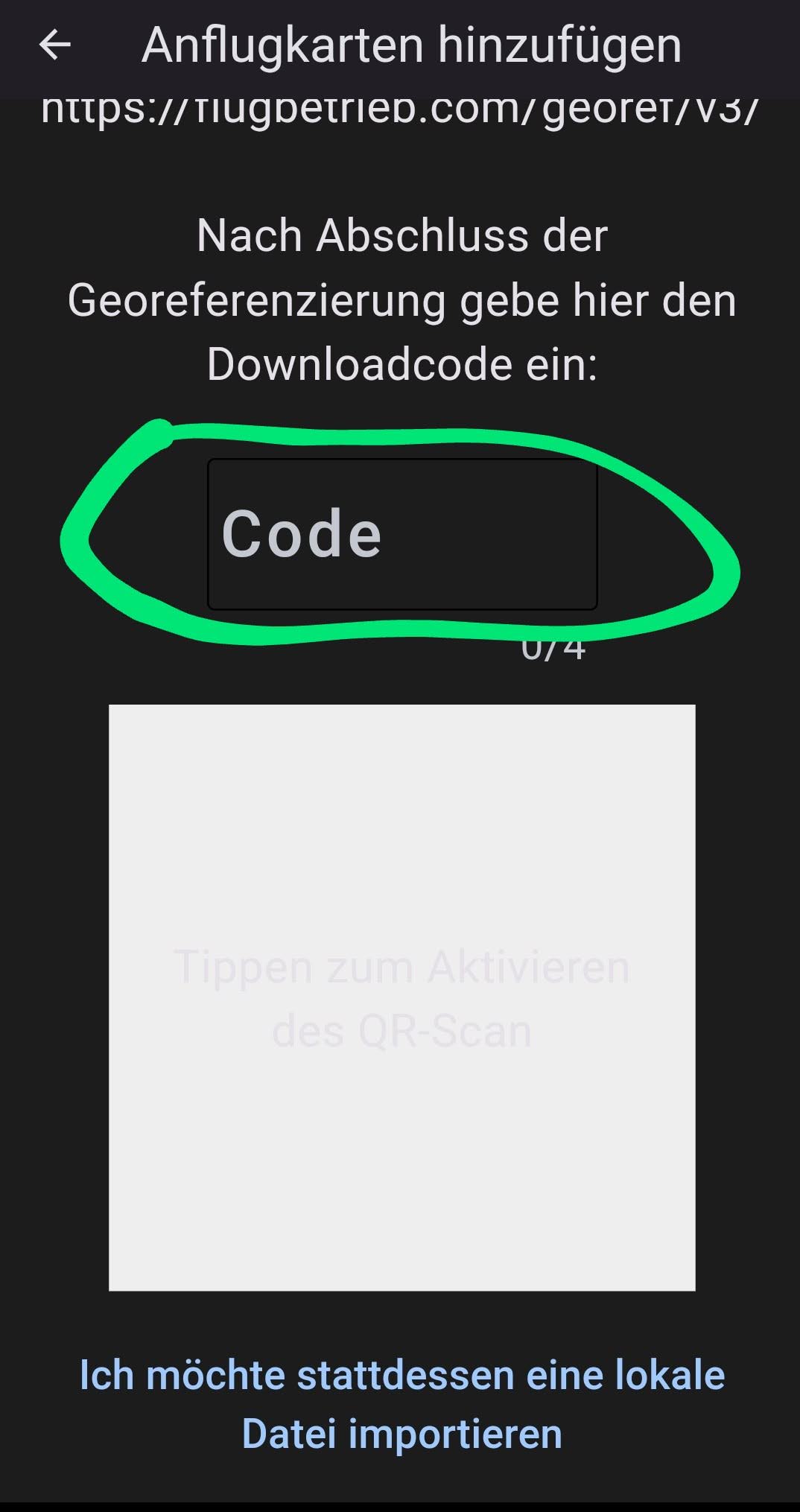
After the last step a green checkmark should appear and the approach chart is integrated.
Check and Corrections:
We go again in VFRnav to
Settings → Approach Charts:
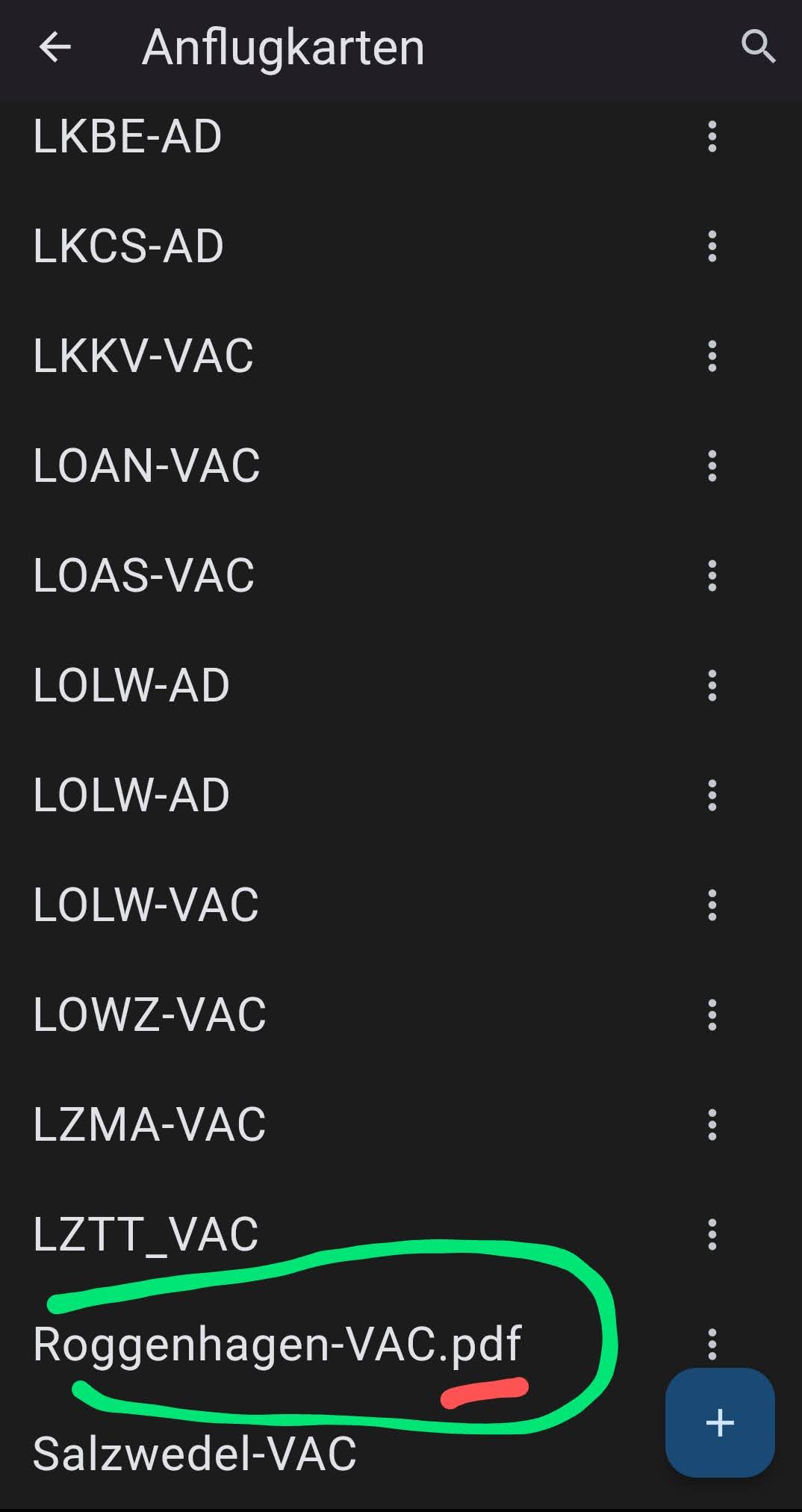
…we see here an unsuitable name for the approach chart with the unnecessary file extension (here .pdf)
To keep some logic in the naming, we give the approach chart a different name and also assign the chart to the airfield.
To do this, click the three dots next to the name and select Edit:
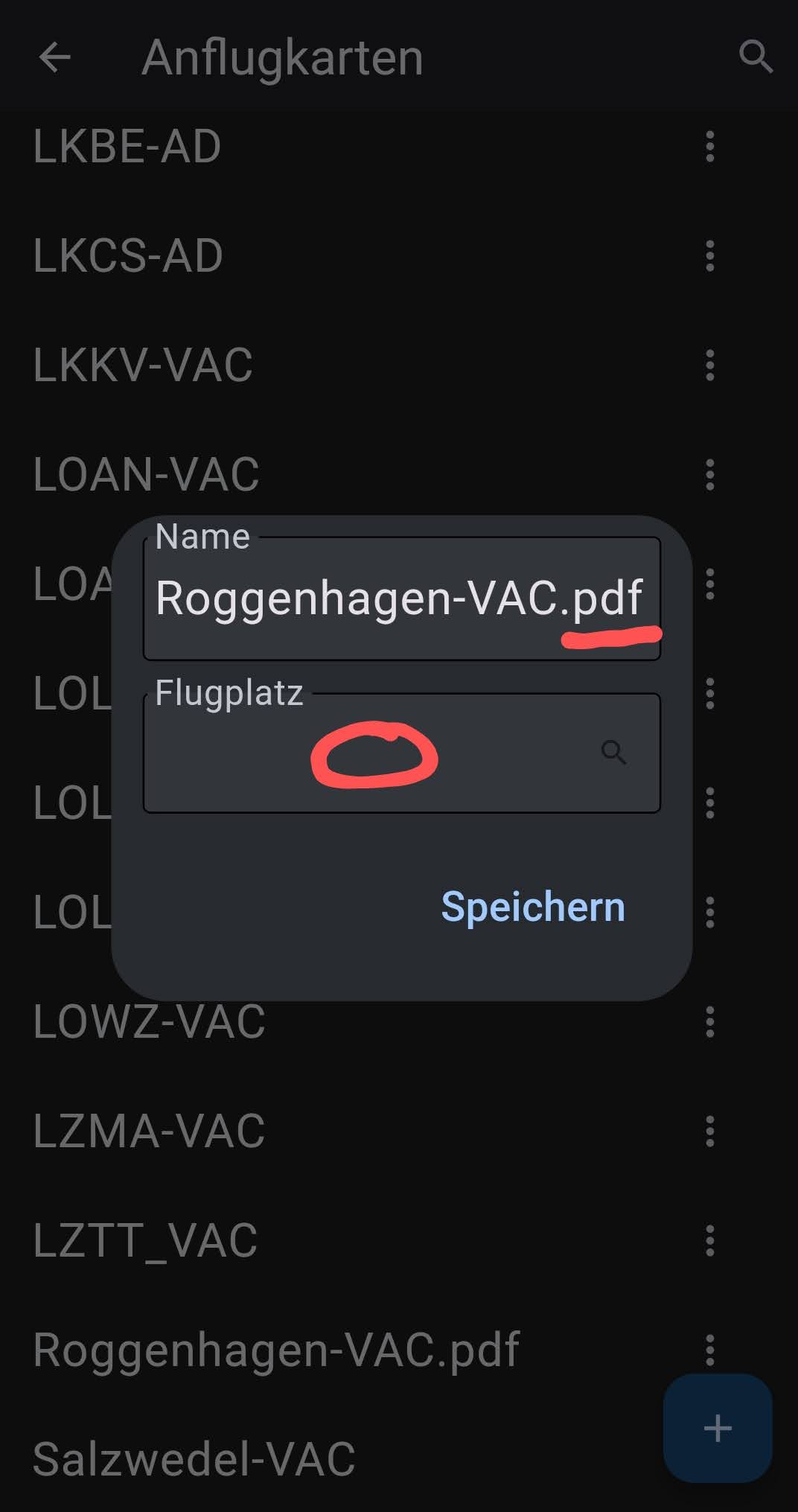
…in the image that now appears, we correct the name of the approach chart as desired. (I always name it with the ICAO code, then the airfield name, and then a designation indicating whether it is an approach chart (VAC … Visual Approach Chart) or an aerodrome chart (AD … Aerodrome, Groundchart))
e.g. like this:
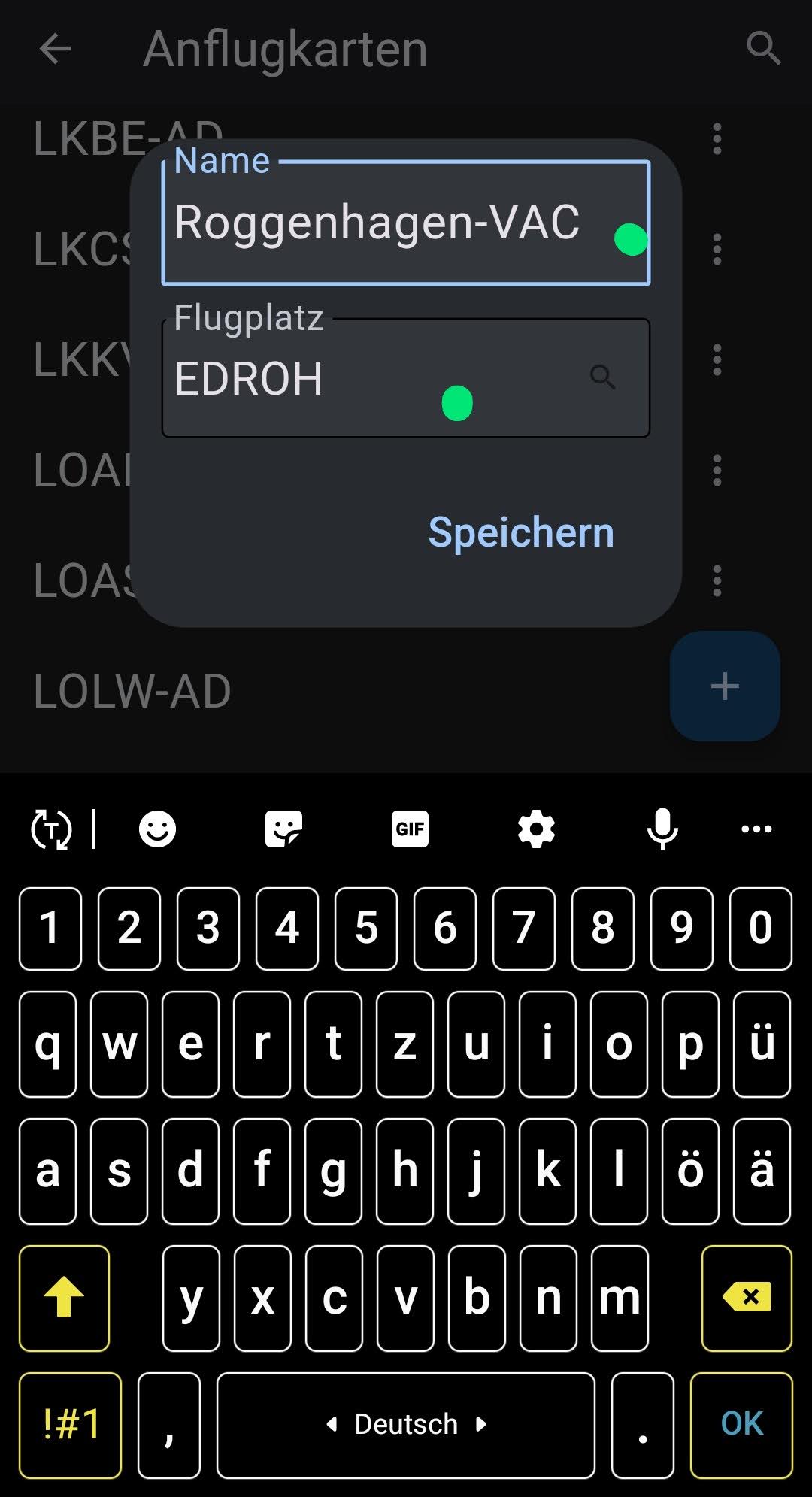
…we confirm and save and we’re already done.
Note:
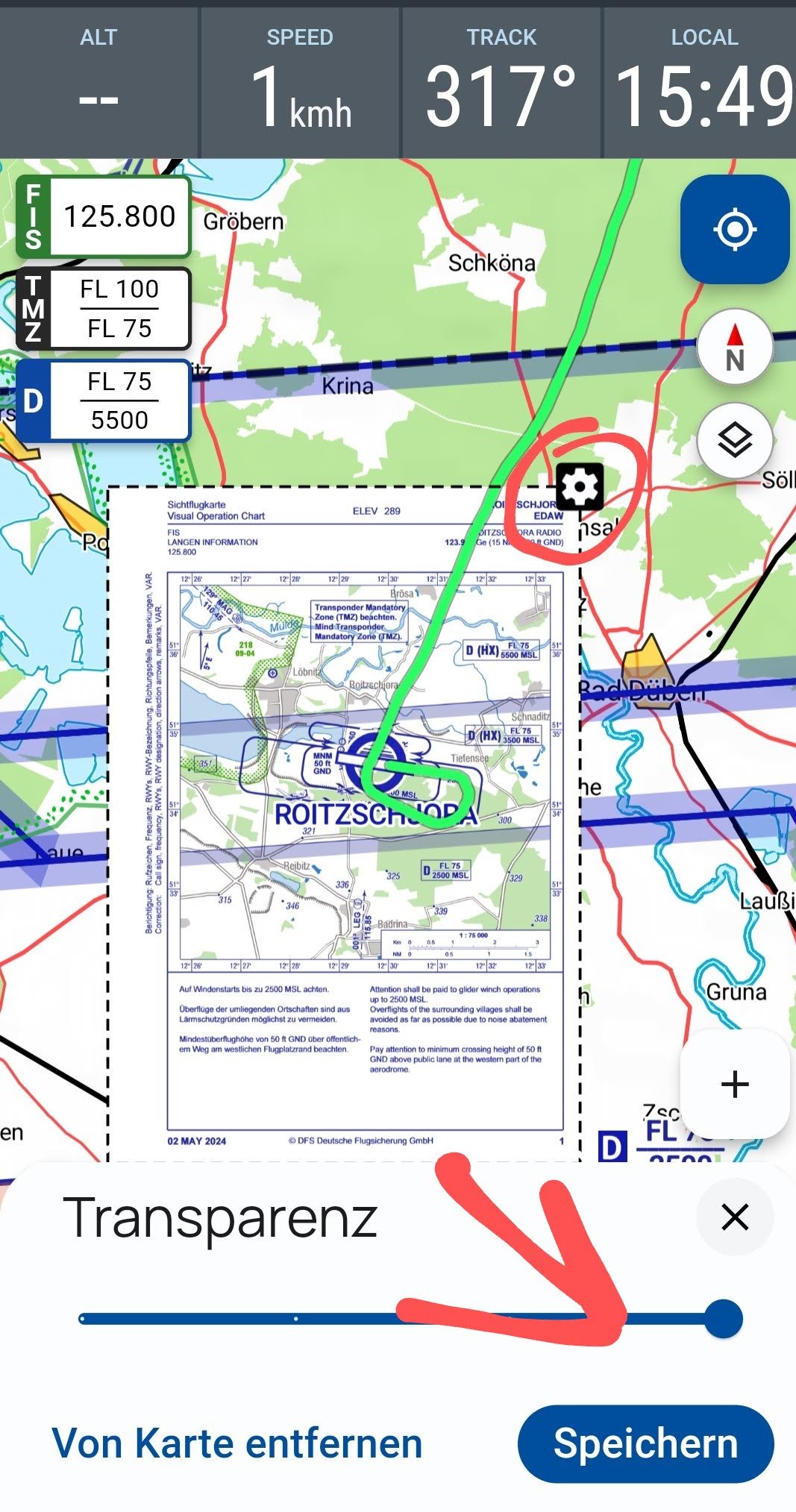
The newly integrated approach chart is applied at 100% opacity. If you’d like some transparency of the underlying map, you can click the cogwheel at the top right of the approach chart and adjust it using the slider to your personal taste. You can also remove a chart from here at this point.
2. Case
Initial situation:
A fellow pilot already has an approach chart for an airfield in their VFRnav. Now they want to share it with me so that I can install it in my VFRnav. To do this, they send me a file with the extension “.chart” via social media or the traditional email.
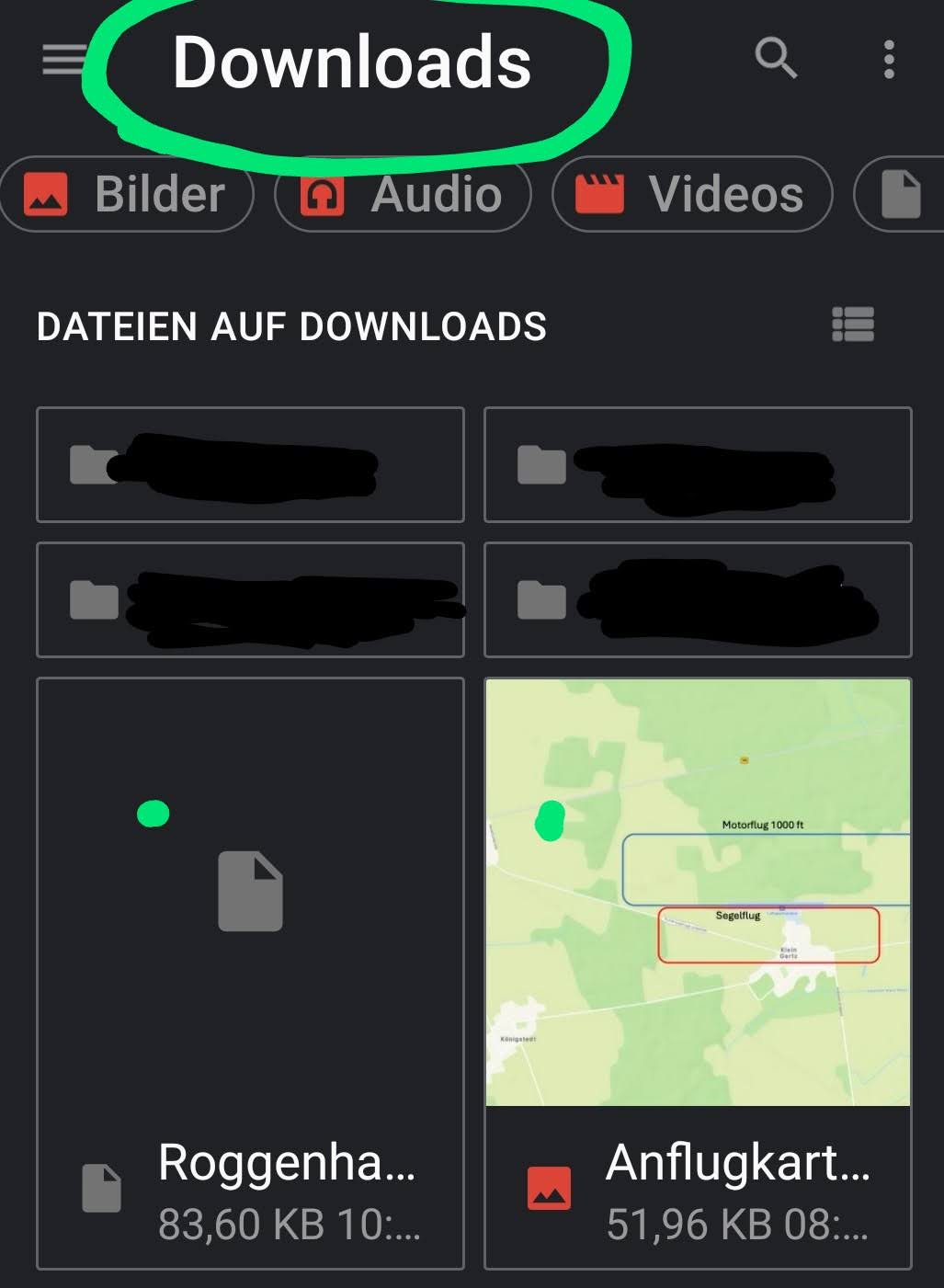
- I download this file to my phone or tablet and save it. On Android this will typically be the Download folder.
Note: …if the installation method described below in VFRnav is not successful, it’s not due to VFRnav, but to the permissions in Android.
Solution: simply copy the aforementioned file from the Download folder once to a personal folder, e.g. Documents. …but this is only necessary if the method described below does not work!
Installation:
I follow exactly the same steps as described above up to the point → tap the blue +:
Now I select the option “I would instead like to import a local file”
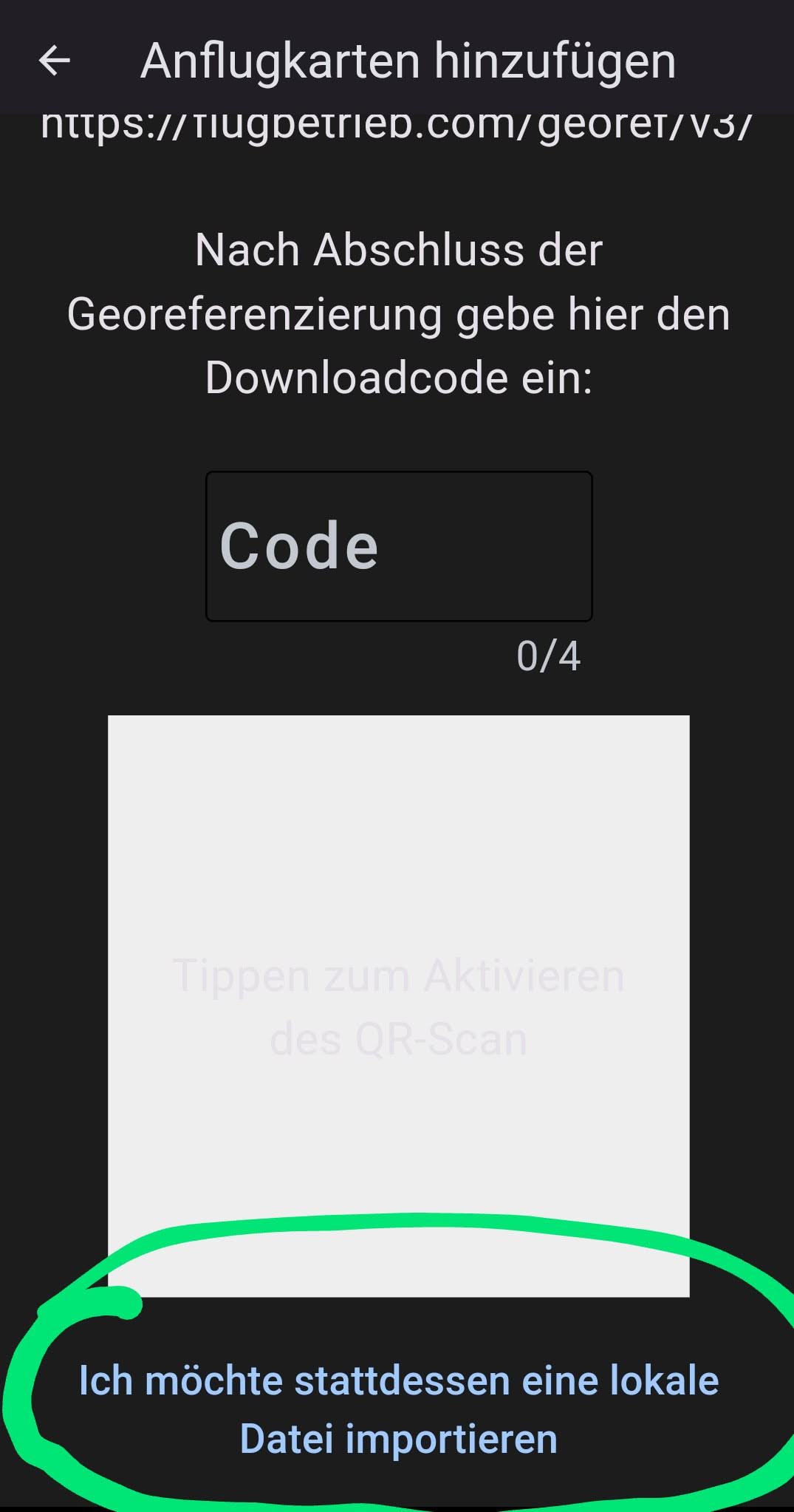
…and I navigate with the file browser to the folder where the file was saved. Here I select the file by tapping it.
3. Case
Installing AIP approach charts from the DFS should be self-explanatory.
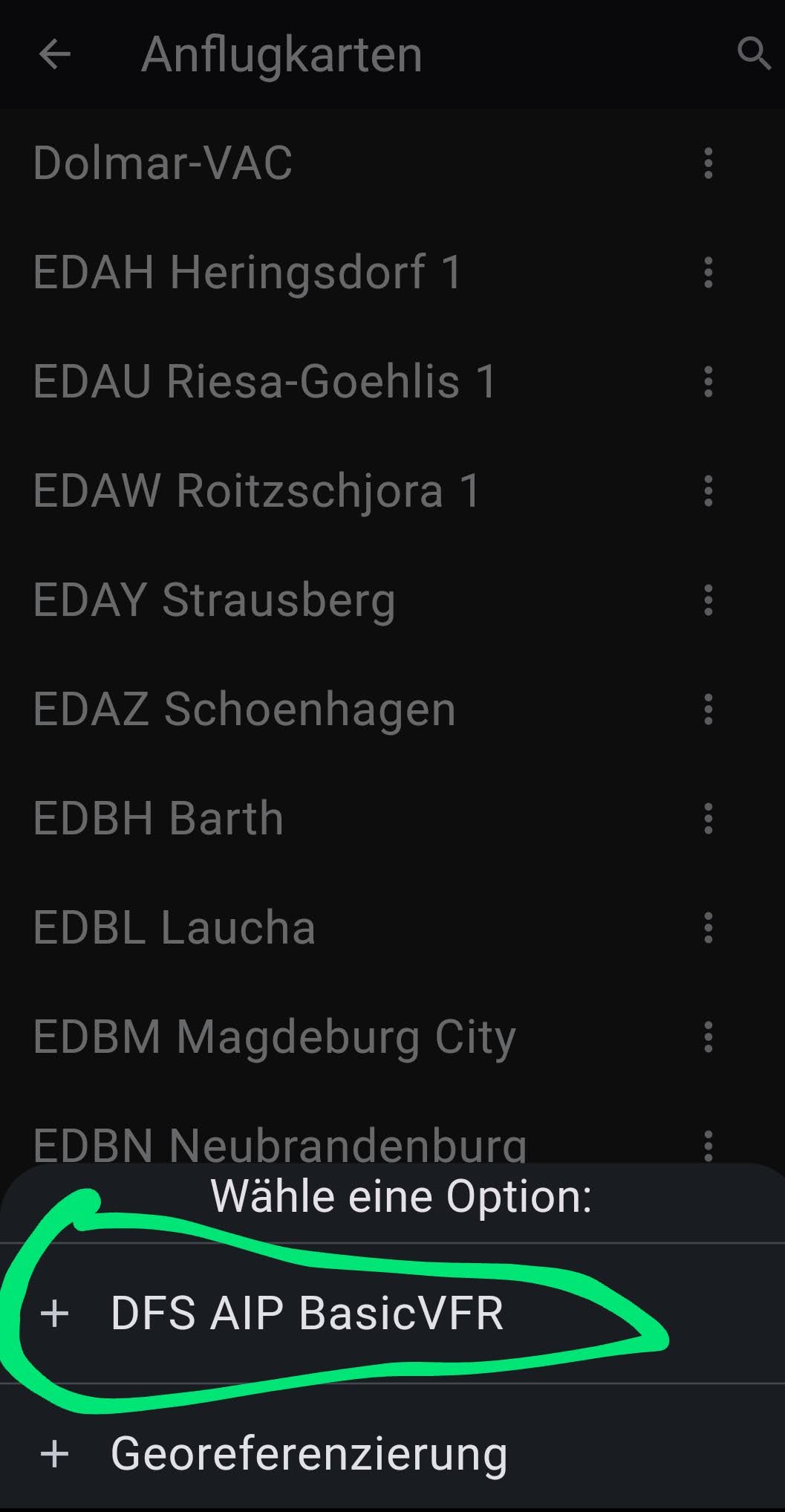
and select:
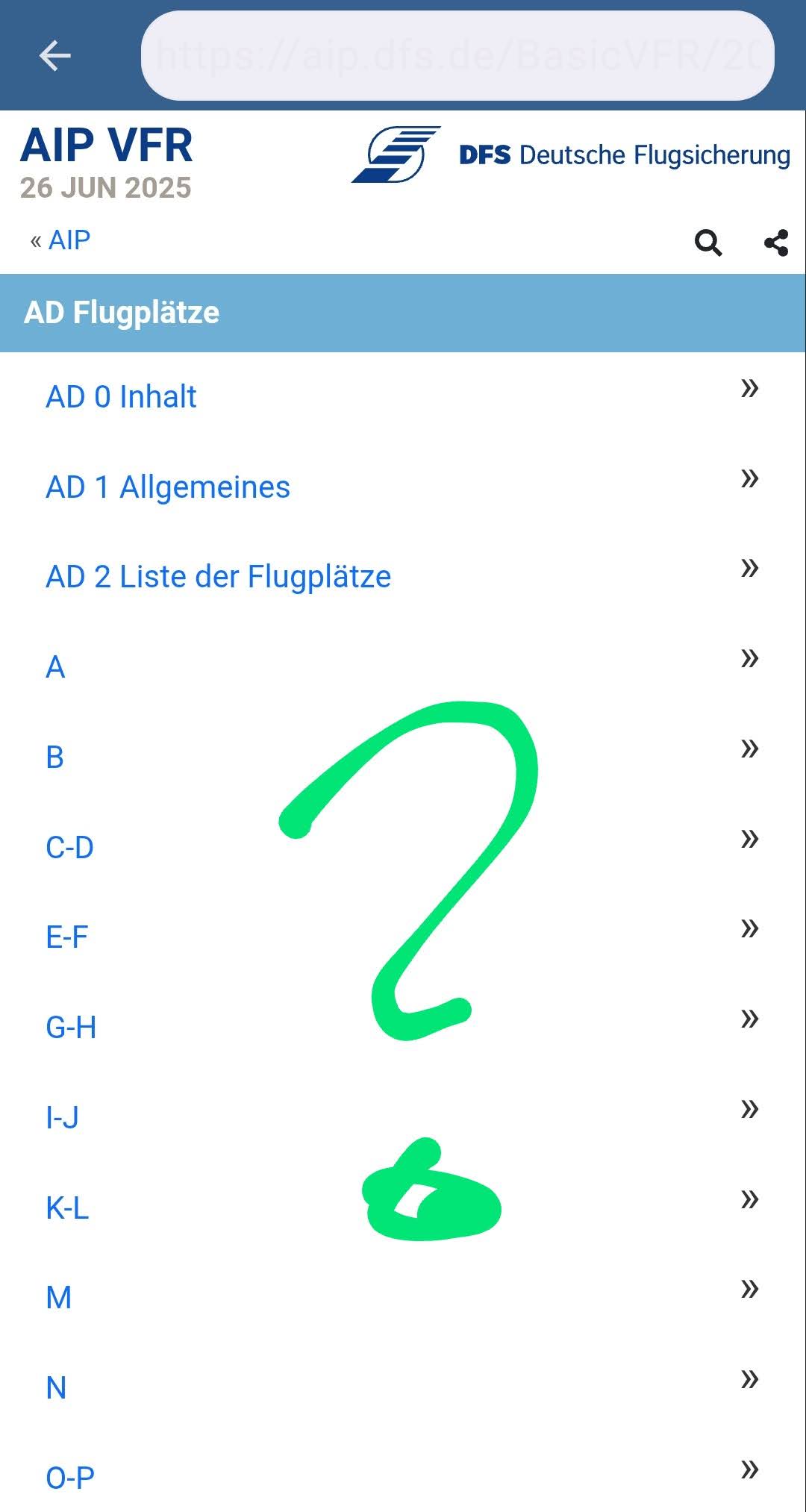
That really is all 
I hope this short guide has clearly explained how to integrate approach charts.
Aviator greetings and simply fly,
Karsten
