VFRnav 4.25 introduces new customization options, activates acoustic traffic alerts, and includes important fixes based on user feedback.
What’s New
New:Acoustic traffic warning is now enabled.
VFRnav can now issue an audible alert in case of immediate collision risk.
We look forward to your feedback on this new safety feature.
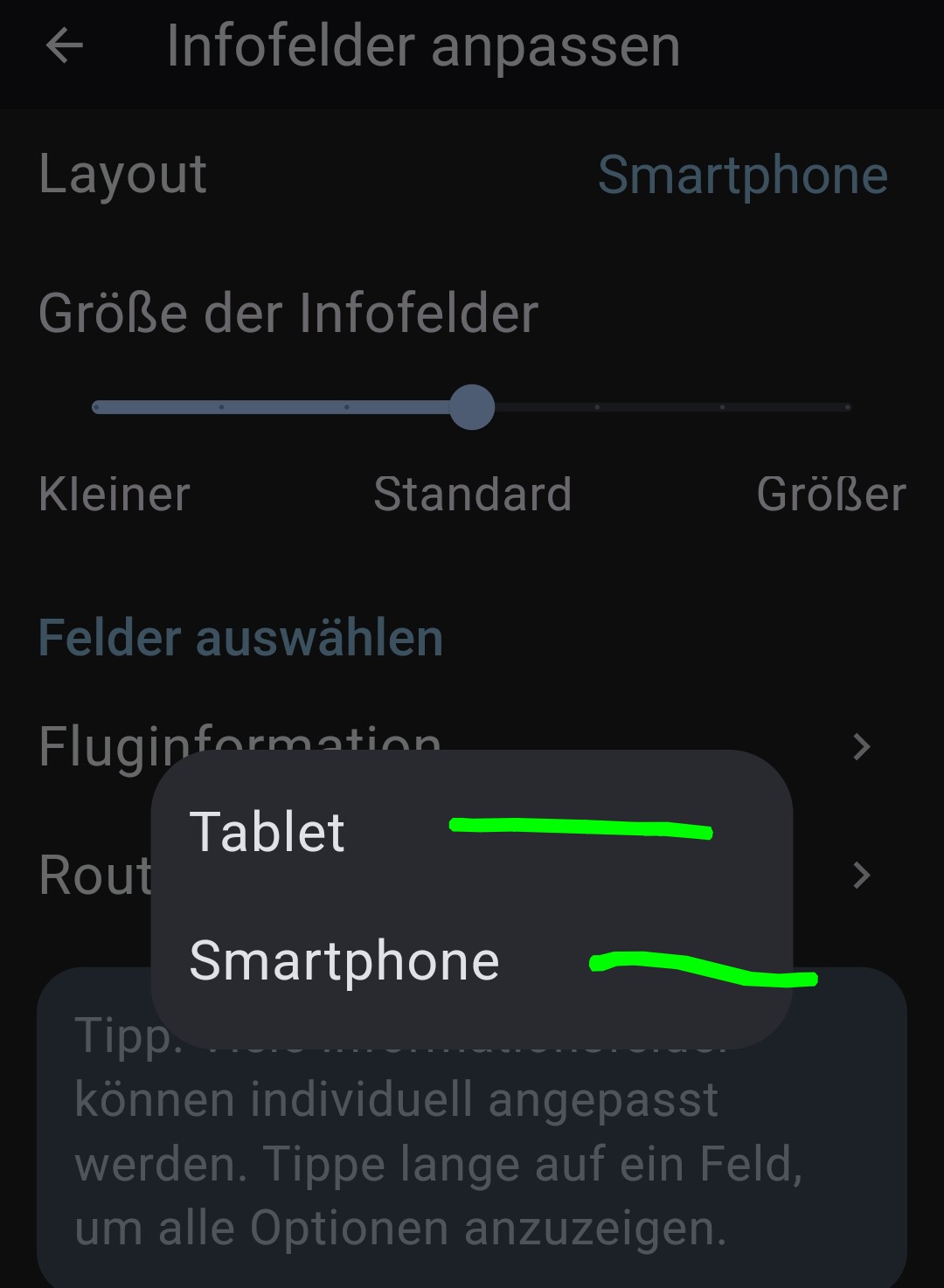
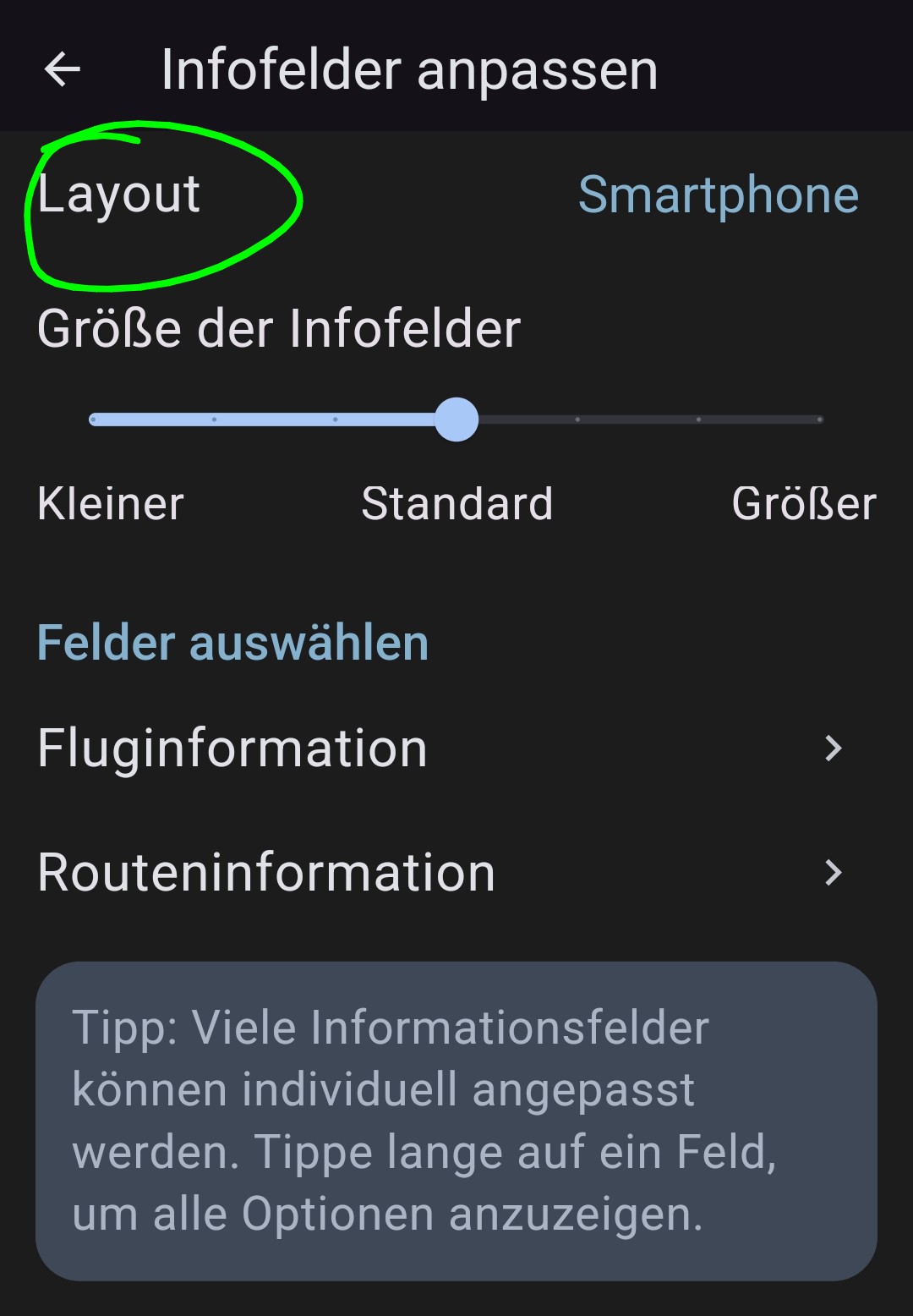
New:Selectable map layout.
We’re listening: many users asked for more flexibility in the map interface.
As a first step, you can now choose in the settings whether to use the tablet layout or the smartphone layout.
This is especially useful for devices with display sizes in between, where the alternative layout may be more suitable.
More layout customization options will follow in future updates.
Fixes
Fix: Importing checklists on iOS was not possible
Fix: Improved display of Class A airspace
As always, if you encounter any issues or have suggestions for improvement, we’d love to hear from you — either by email or here in the forum.
Thanks again for yet another very sensible update. I’m personally looking forward to testing the audible traffic alert, as there’s always a lot of traffic at our airfield in the triangle between EDLN, EDDL and EDDK.
I tried the audible traffic warning yesterday and it works really well, maybe a little too well. While I was standing on the apron the system kept talking to me the whole time, because other aircraft next to me were powering up, landing, or taking off.
Could we perhaps add a configurable speed threshold for this feature, similar to the flight time logging, that determines when the feature becomes active? Anyone who still wants to hear the messages while stationary or taxiing on the apron could then set the value to 0 or something slightly higher.
I’ve noticed that as well and I think it’s intentional and understandable.
I use VFRnav on a 9-inch tablet, so with a screen size between a regular tablet and a smartphone. The radar icon already takes up quite a bit of space on my screen, too, and obscures a large part of the map. This will certainly be even more noticeable on a smartphone display, so I understand why this display is hidden when the setting is set to Smartphone. You can also set your smartphone to tablet mode and then you’ll see everything again. Whether the screen feels too cluttered for you with that or not is something you can decide for yourself.
For the icon I had everything set in the settings on the right (gear icon) but I didn’t press on the left to select the airplane… well, that’s sorted!
I like the smartphone view on my 8” tablet because the info buttons are on both sides. But as a result I didn’t see the other aircraft in flight. I had to switch to full CCAS to see the traffic in a busy area.
The audio notification over Bluetooth worked, but I wonder if the headset’s Bluetooth went to sleep after a few minutes when there were no more alerts?
 What’s New
 Fixes
Fixes